


Mic monitoring (also called sidetone) plays your own microphone back into your headphones while you talk, so you stop shouting at your squad or your call. How well it works depends on one thing: whether the loop runs in hardware, which feels instant, or in software, which always adds some delay. This guide covers Xbox, PS5, Windows, Mac, Linux, phones and free recording apps, with the menu paths and fixes for each.
Key takeaways
- Mic monitoring, sidetone and “Listen to this device” are the same idea with different names.
- Hardware monitoring (headset sidetone, interface direct monitor) feels instant. Software monitoring always lags.
- Delay starts to be noticeable beyond about 10 ms, according to Shure.
- Use only one monitoring path. Two paths at once give you a doubled, echoey voice.
- If other people hear your echo, the cause isn’t sidetone. It’s loopback or duplicate routing.
Quick steps: turn on mic monitoring
- Plug in wired or console-supported headphones, never speakers.
- Find your platform’s control: Mic Monitoring (Xbox), Sidetone Volume (PS5), Listen to this device (Windows).
- Start at around 40–50% and talk at normal volume.
- Turn off any second monitoring path, such as headset sidetone or OBS monitoring.
- Adjust the level with game or call audio playing.
What mic monitoring means (and why it’s also called sidetone)
Mic monitoring sends your microphone signal straight back into your own headphones in real time. You hear your voice the way you’d hear it with your ears uncovered, so you talk at a normal volume.
The reason it exists is simple. Closed-back headsets block your own voice from reaching your ears. Your brain reads that as “too quiet” and you raise your voice without noticing. Telephone engineers solved this decades ago by feeding a little of the mouthpiece into the earpiece. They called it sidetone, and the name stuck.
Every maker labels it differently, which is why searches for the setting often come up empty:
| Platform / app | What it’s called | Menu path | Hardware or software | Expect latency? |
|---|---|---|---|---|
| Xbox Series X|S, Xbox One | Mic Monitoring | Settings > General > Volume & Audio Output | Console-routed | Slight |
| PlayStation 5 | Sidetone Volume | Settings > Sound | Console-routed | Slight |
| Windows 10 / 11 | Listen to this device | Sound Control Panel > Recording > Properties > Listen | Software | Yes |
| Razer Synapse | Mic Monitoring (Sidetone) | Headset settings in Synapse | Headset hardware | Minimal |
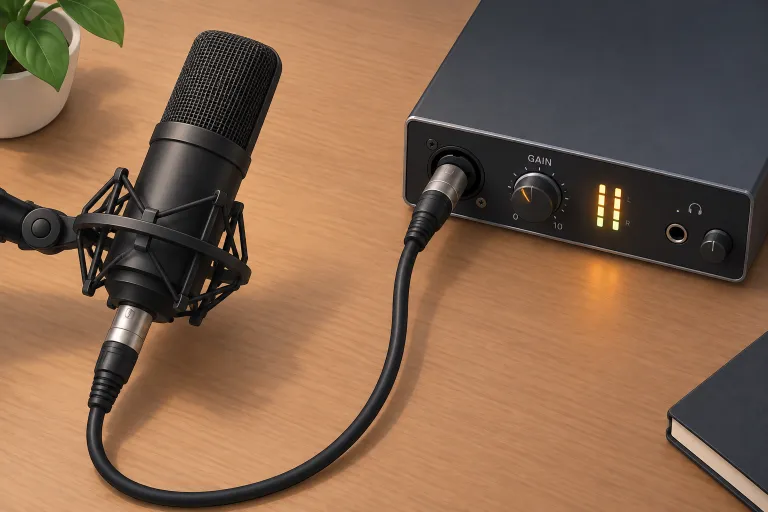
| USB mic / audio interface | Direct monitoring | Physical knob or switch | Hardware | Effectively none |
| OBS Studio | Audio Monitoring | Edit > Advanced Audio Properties | Software | Yes |
| Audacity | Audible input monitoring | Transport > Transport Options | Software | Yes, noticeable |
| macOS (LadioCast) | Aux Output | LadioCast mixer window | Software | Yes |
| Linux (PipeWire) | Loopback | pw-loopback or pactl | Software | Yes, tunable |
Mic monitoring vs sidetone vs direct monitoring
All three let you hear yourself live. The difference is where the signal loops back.
- Sidetone loops inside the headset itself. Turtle Beach notes that this is faster than the console-routed loop on Xbox.
- Mic monitoring on a console or PC often means the system does the loop, so the signal travels through more processing first.
- Direct monitoring is the term used on audio interfaces and USB mics. The input is copied to the headphone jack before it ever reaches the computer.
Mic monitoring vs a mic test
A mic test records you and plays it back, or shows a level meter, so you can check that the mic works. Mic monitoring is continuous and live. Browser tools such as webcammictest.com and mictests.com are fine for checking whether your microphone works at all. They aren’t a monitoring solution, because the audio goes through the browser’s software path.
Hardware vs software monitoring: why some setups lag
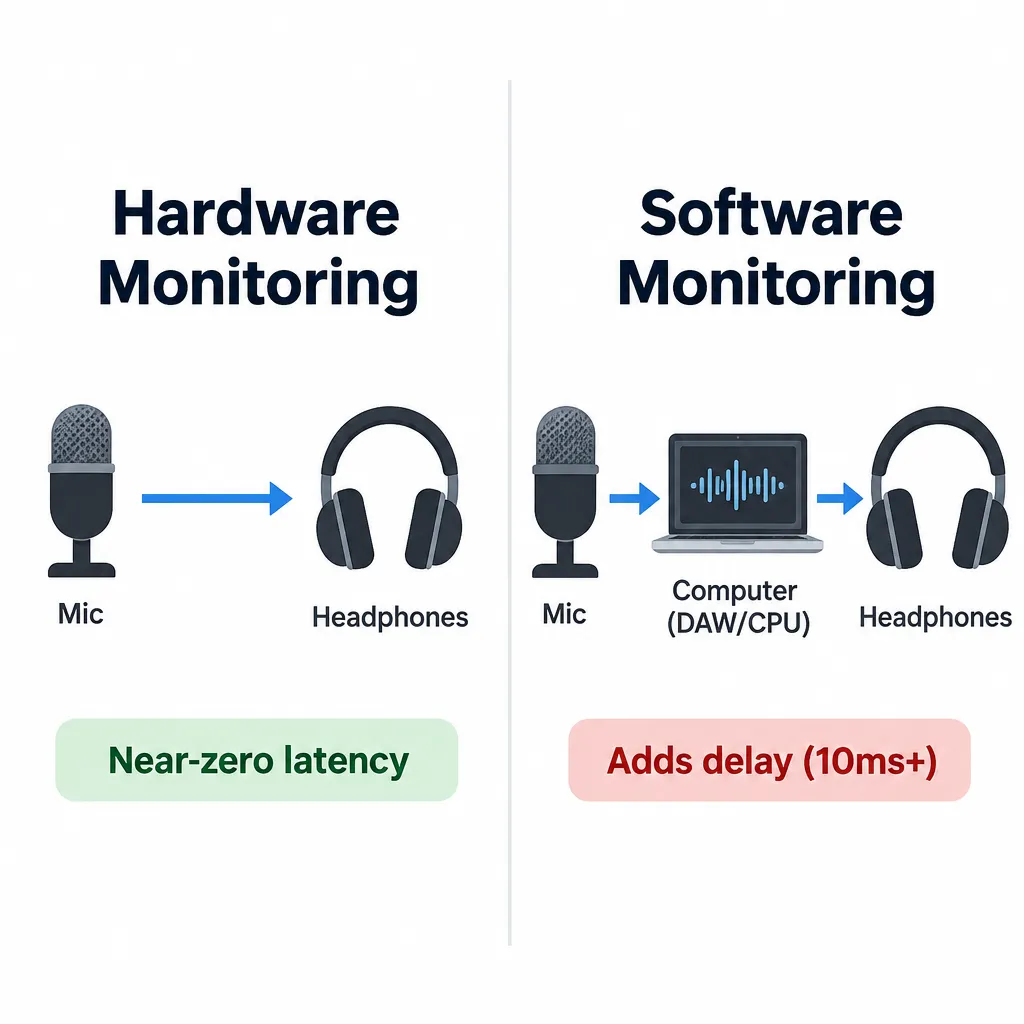
Hardware monitoring feels instant because the signal never leaves the device. Software monitoring adds delay because the audio has to be converted to digital, buffered by drivers, processed by the operating system and converted back before you hear it.
This one idea explains almost every complaint about mic monitoring. Windows “Listen to this device”, browser “hear yourself” pages, OBS monitoring and Audacity’s input monitoring are all software paths. Headset sidetone and the direct-monitor knob on a USB mic or interface are hardware paths. JackTrip’s support documentation makes the same split: direct monitoring feels instant, while digital monitoring sounds similar but carries some delay from the interface and drivers.
How much delay is too much (in milliseconds)
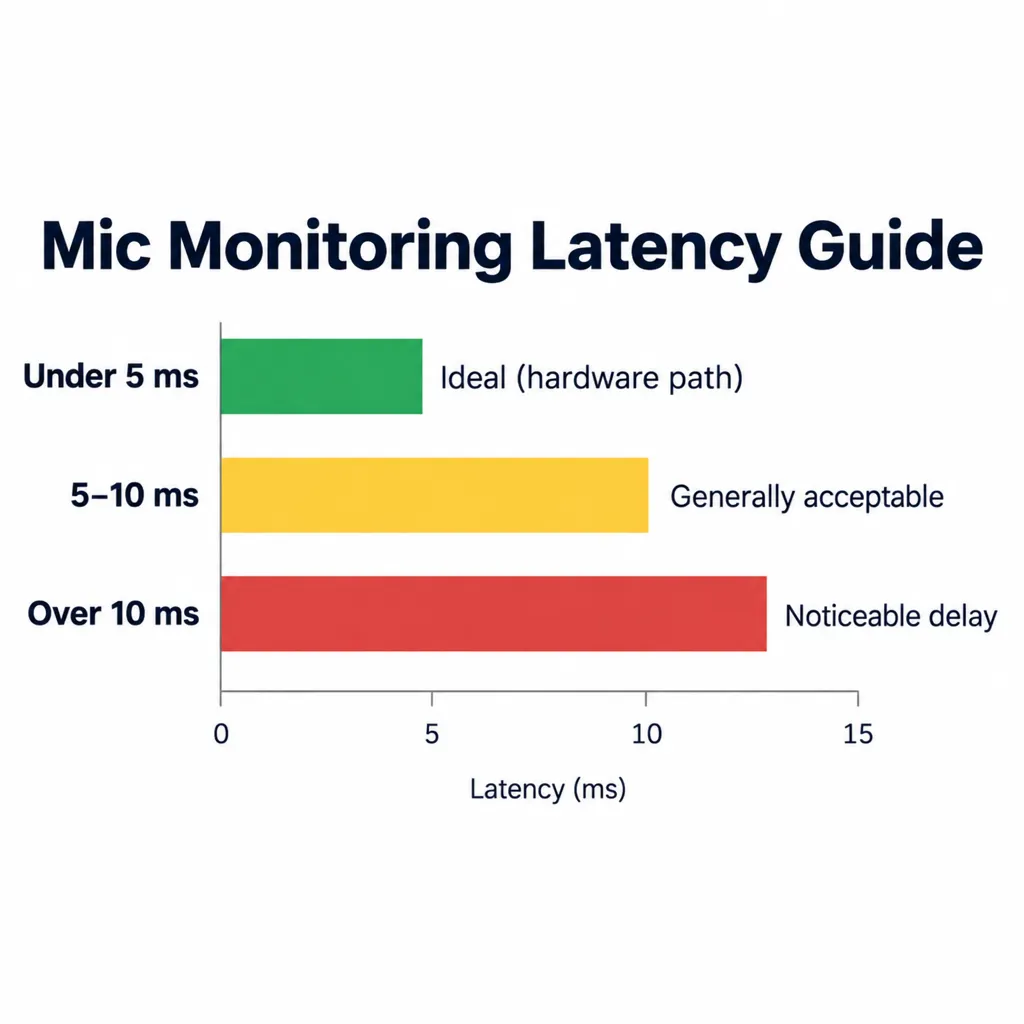
Below about 10 ms, most people won’t notice the delay. Above it, your voice starts to sound detached from your mouth.
| Latency | What you’ll hear | Source |
|---|---|---|
| Under 5 ms | Recommended for in-ear monitors, though singers may hear comb filtering | Shure |
| 5 ms or less | Maximum from mic to wedge or in-ear for live monitoring | ProSoundWeb |
| 5–10 ms | Generally fine for stage monitors | Shure |
| Up to about 10 ms | Not noticeable in an informal guitar test | Whirlwind (Al Keltz) |
| 10–15 ms | Slightly noticeable | Whirlwind (Al Keltz) |
| Beyond about 10 ms | Delay becomes noticeable | Shure |
For speech in a party chat you can tolerate more than a singer can. For vocals, aim for the hardware path every time.
Did you know?
According to Shure, even under 5 ms of delay a vocalist can hear comb filtering, a hollow, phasey tone. Singers hear themselves through bone conduction as well as the monitor, so any delay between the two colours the sound.
Why Bluetooth headsets make monitoring feel out of sync
Bluetooth adds its own encoding and buffering on top of whatever the system does. Combine that with a software monitoring path and the delay piles up. The developer of the Android app Mic Monitor – Real Time Voice says plainly that Bluetooth audio introduces delay and isn’t suitable for real-time monitoring, and requires wired headphones instead. On Xbox, standard Bluetooth headsets aren’t supported for game audio at all, so the system slider won’t work with them.
Why Discord has no “hear yourself” button
Discord has no built-in option to hear your own voice during a call. A long-running feature request in Discord’s support community is still open, and the thread itself points out that software monitoring can’t avoid a slight delay. If you want to hear yourself on Discord, use headset sidetone or a direct-monitor knob. Both work regardless of which app is open.
Should mic monitoring be on or off?
Turn it on, kept low, if you wear closed-back headphones and catch yourself talking loudly. Turn it off if you use speakers, if the delay distracts you, or if another device already monitors for you.
| Situation | Recommendation | Why |
|---|---|---|
| Gaming party chat | On, low level | Stops you shouting over game audio |
| Work calls | On if you shout, off if it distracts | Personal preference; no effect on what others hear |
| Singing or podcast recording | On, hardware path only | Software delay throws off timing and pitch |
| Streaming with OBS | Mic on Monitor Off; use headset or interface monitoring | Avoids delay and duplicate audio |
| Speakers instead of headphones | Always off | Causes feedback howl |
| Open-back headphones | Usually unnecessary | You already hear your own voice |
When to turn it off
Switch it off when you hear a delayed copy of yourself, when it picks up keyboard and room noise you’d rather not hear, or when your headphones are open-back. Mic monitoring only changes what you hear. Turning it off never changes what other people receive.
The one-path rule: never stack two monitoring sources
If the console or OS monitoring and the headset’s own sidetone are both on, you hear two copies of your voice arriving at slightly different times. That sounds like an echo or a “doubled” voice. Pick one path and turn every other one off.
Producer tip
Use only one monitoring path. If your headset has sidetone, set the Xbox or PS5 slider and Windows “Listen to this device” to off, or you’ll hear a doubled, echoey voice.
How high should mic monitoring be?
Start at 40–50%, the level Turtle Beach’s Xbox guide suggests, then adjust while the game or call is actually running. A silent menu lies to you, because your voice sounds far louder there than it will over explosions and footsteps.
The right setting is the lowest level where you speak at a normal volume without effort. A quick way to find it:
- Set the slider to 40%.
- Start a match or play a video at your usual volume.
- Talk for 30 seconds. If you’re straining, go up 10%.
- If you hear a distinct second voice, hiss or room noise, go down 10%.
Too high, and you get an echo-like effect plus amplified background noise. Too low, and the setting does nothing at all. A sensitive condenser mic picks up more room sound than a dynamic headset mic, so it usually needs a lower monitoring level.
How to turn on mic monitoring on Xbox Series X|S and Xbox One
Press the Xbox button, then go to Profile & System > Settings > General > Volume & Audio Output and move the Mic Monitoring slider. The same steps apply on Xbox One and Xbox Series X|S.
The faster route doesn’t make you leave your game:
- Press the Xbox button to open the Guide.
- Select the audio (speaker) icon at the bottom.
- Adjust the Mic Monitoring slider.
The slider only works for headsets connected through the 3.5mm controller jack, USB or Xbox Wireless. Standard Bluetooth headsets aren’t supported for game audio on Xbox.
On Xbox, set it mid-match
Start the Mic Monitoring slider at 40–50% and adjust it from the Guide during a real match, with game audio playing, not in a silent menu.
Slider greyed out or missing
A greyed-out slider means the console isn’t detecting a headset with a mic. Check these in order:
- Unplug and reseat the 3.5mm plug firmly in the controller jack.
- Update the controller from Settings > Devices & connections > Accessories.
- Check that the headset uses a supported connection, not standard Bluetooth.
- If the headset has its own app or dial, the console slider may be replaced by the headset’s control.
Headset has its own sidetone dial or app
Many Xbox headsets handle sidetone inside the headset, which Turtle Beach notes is faster than the console loop. The Razer Kaira for Xbox is an example: Razer’s support pages say you turn on mic monitoring in the Razer Headset Setup for Xbox app, under Listen. If you use the headset’s control, leave the console slider at zero.
How to turn on mic monitoring on PS5
On PlayStation 5, go to Settings > Sound and raise Sidetone Volume above zero. Sony’s support page describes it as the control for how loud your own voice sounds in the headset.
Did you know?
Sony doesn’t use the term “mic monitoring” on the PS5 at all. Its support documentation calls the setting Sidetone Volume, which is why people searching the menu for “mic monitoring” can’t find it.
If you can’t find Sidetone Volume, the likely reasons are:
- Unsupported headset. Sony states the setting isn’t available for all headsets.
- Wrong output device. Check that the PS5 is actually outputting to your headset under Settings > Sound.
- Bluetooth headset not used as a mic. If the headset isn’t the active input device, there’s nothing to monitor.
- Headset handles it itself. Some headsets have their own sidetone control instead.
Same rule as Xbox: if the headset’s own sidetone is on, keep Sidetone Volume at zero.
How to hear yourself on a Windows 10/11 PC
Windows calls it “Listen to this device”, and it lives in the classic Sound Control Panel rather than the newer Settings app. The steps are the same on Windows 10 and Windows 11.
- Press Win + R, type
mmsys.cpland press Enter. On Windows 11 you can also go to Settings > System > Sound > More sound settings. - Open the Recording tab.
- Right-click your microphone and choose Properties.
- Open the Listen tab.
- Tick “Listen to this device”.
- Under “Playback through this device”, choose your headphones.
- Click Apply.
To turn it off, go back to the same tab, untick “Listen to this device” and click Apply. This setting stays on across restarts, which is why people forget it’s on and then wonder why they hear themselves.
Watch out
Never pick your speakers under “Playback through this device”. The mic hears the speakers, the loop builds, and you get a loud feedback howl.
Fixing the delay in Windows mic monitoring
A common question on Microsoft’s community forum goes: “when I turn on the mic monitoring box on my windows 10 laptop it has a bit of delay, is there a fix?” Honestly, not within Windows. “Listen to this device” is a software path, so it always carries some buffering delay. Unticking the box removes the delay only because it removes the monitoring.
The real fixes are hardware:
- Headset sidetone in the vendor app. In Razer Synapse, Mic Monitoring (Sidetone) can be switched on or off or set to a level. Other brands have similar apps.
- A USB mic or audio interface with direct monitoring. The headphone jack on the mic or interface hears the input before Windows does. If your interface also feeds a mic preamp, the direct-monitor signal comes from that same front-end, so what you hear is what gets recorded.
Missing mute button and other Windows quirks
One reader question on the old Microsoft thread asks: “I dont get the unmute button in levels? Is it because im on my laptop?” Often, yes. The speaker icon next to the Levels slider depends on the audio driver, and many built-in laptop mic drivers leave it out. Check instead that the input isn’t muted in Settings > System > Sound, and that microphone access is on under Settings > Privacy & security > Microphone.
If “Listen to this device” works sometimes but drops out when an app is open, that app may have taken exclusive control of the mic. In the mic’s Properties, open the Advanced tab and untick “Allow applications to take exclusive control of this device”.
How to monitor your mic on Mac for free
macOS has no built-in “listen to this device” switch, so you need a free app or a hardware direct-monitor knob. The simplest free option is LadioCast from the Mac App Store.
LadioCast setup in four steps
- Install LadioCast from the Mac App Store. It’s free.
- Set Input 1 to your microphone.
- Set the Aux Output to your headphones.
- On the Input 1 channel, enable the Aux send so the mic goes to that output.
LadioCast’s newer Loopback Streamer exposes its mix as a “Ladiocast Loopback” input for other apps, but that feature needs macOS 14.2 or later. You don’t need it for plain monitoring.
When BlackHole is overkill
BlackHole, from Existential Audio, is an open-source virtual audio driver licensed under GPL-3.0. It works as a virtual cable between apps, not as a monitor on its own. It’s the right tool when you need to route a mix into OBS or a recording app, usually alongside a Multi-Output Device built in macOS Audio MIDI Setup.
That combination has known pitfalls. The BlackHole documentation notes that macOS can’t change the volume of a Multi-Output Device, so you set each device’s volume in Audio MIDI Setup instead. Drift correction should be enabled on every device except the clock source. For simply hearing your voice, LadioCast or a direct-monitor knob is far less work.
How to monitor your mic on Linux (PipeWire and PulseAudio)
On a modern Linux desktop running PipeWire, pw-loopback creates a loopback from your mic to your headphones in one command. The PulseAudio-compatible pactl route works too, and most distributions accept both.
The quickest route loops your default input to your default output:
pw-loopback
It runs until you press Ctrl+C. According to the PipeWire man page, pw-loopback uses the loopback module, and you can pass capture and playback properties as JSON for finer control. To target a specific mic, pass its node name with -C (capture) and your headphones with -P (playback).
The PulseAudio-compatible route returns a module number and keeps running in the background:
pactl load-module module-loopback latency_msec=5
The latency_msec value requests a target delay. Very low values can crackle on slower machines, so raise it if you hear dropouts.
For a permanent loopback, the ArchWiki’s PipeWire examples show loading the loopback module in the PipeWire daemon config instead. Only do this once the one-off commands sound right.
Finding your mic node name
Run pactl list short sources to list inputs, or wpctl status on systems with WirePlumber. Copy the name of your mic exactly as shown. Names that end in .monitor are output monitors, not microphones.
Removing the loopback when you’re done
Press Ctrl+C in the terminal running pw-loopback. For the pactl route, run:
pactl unload-module module-loopback
This removes every loopback module you loaded. Use headphones the whole time, because a loopback through laptop speakers feeds back within seconds.
Mic monitoring in free recording and streaming apps
Free recording and streaming apps offer monitoring, but all of it is software-based and delayed. Use it to check a source, and use hardware monitoring when you need to perform in time.
| Tool | OS | Free / open source | Best for | Caveat |
|---|---|---|---|---|
| OBS Studio | Win, Mac, Linux | Free, open source | Hearing alerts and music while streaming | Software delay on mic monitoring |
| Audacity | Win, Mac, Linux | Free, open source | Checking input while recording | Manual warns of noticeable latency |
| LadioCast | macOS | Free (App Store) | Simple mic-to-headphone monitoring | Loopback Streamer needs macOS 14.2+ |
| BlackHole | macOS | Open source (GPL-3.0) | Routing audio between apps | Not a monitor on its own |
| PipeWire pw-loopback | Linux | Open source | One-command mic loopback | Terminal only |
| Browser mic tests | Any | Free | Checking that a mic works | Browser path adds delay |
OBS: Monitor Off vs Monitor Only vs Monitor and Output
OBS Studio gives each source three monitoring modes in Edit > Advanced Audio Properties:
- Monitor Off: the source goes to your stream or recording, and you don’t hear it.
- Monitor Only (mute output): you hear it, and the stream doesn’t.
- Monitor and Output: you hear it, and the stream gets it too.
Set which headphones you monitor through in Settings > Audio, under the Monitoring Device option.
A common forum question is “Mute mic monitor but NOT output in OBS?” The answer is Monitor Off. Your mic still goes out on stream; you just stop hearing the delayed copy.
OBS mic setting
Set your mic to Monitor Off and listen through headset sidetone or an interface knob. Save “Monitor and Output” for sources you need to hear, like alerts or music.
Audacity
Audacity calls the feature “audible input monitoring”. It was previously named Software Playthrough. Turn it on under Transport > Transport Options > Enable audible input monitoring. The Audacity manual itself warns of a noticeable delay before you hear the input, so treat it as a check, not a performance monitor. Turn it off when you record computer playback, or you’ll create feedback echoes. If you’re new to the app, the free recording workflow is the same with monitoring on or off.
Browser “hear yourself” tests
Online mic test pages are useful for one job: confirming that the browser can access the mic and that the level moves. Any “hear yourself” playback on those pages goes through the browser’s audio stack, so expect lag. A delay there says nothing about your mic’s quality.
Mic monitoring on Android and iPhone
Neither Android nor iOS has a general “hear my own mic” switch for phone calls or recording. You need a dedicated app, and you need wired headphones for usable timing.
- Android: Free Google Play apps such as Mic Monitor – Real Time Voice and Playback Mic route the mic to your headphones. Mic Monitor’s developer requires wired headphones and says Bluetooth isn’t suitable. The Playback Mic developer admits there will always be some latency on Android devices.
- iPhone and iPad: Apple’s Live Listen turns the iPhone into a remote microphone for AirPods or Beats. It needs iOS or iPadOS 14.3 or later and runs over Bluetooth. Open Control Center, tap the hearing icon and tap Live Listen. It’s an accessibility feature, so it works well for hearing a room, and the Bluetooth delay makes it a poor fit for monitoring your own singing.
For serious mobile recording, a USB-C mic or interface with its own headphone jack and direct-monitor knob beats any app.
Troubleshooting: echo, delay, noise and “I can hear myself and don’t want to”
Start with one question: who hears the problem? If only you hear the echo, it’s sidetone or monitoring. If other people hear an echo of your voice, sidetone isn’t the cause, because sidetone only plays in your own ears. That points to loopback or duplicate routing.
| Symptom | Likely cause | Fix |
|---|---|---|
| You hear a doubled or echoey voice | Two monitoring paths on (headset sidetone plus console or Windows) | Keep one path; set the others to zero or off |
| Your voice is delayed in your ears | Software monitoring (Windows Listen, OBS, browser, Audacity) | Use headset sidetone or a direct-monitor knob |
| You hear yourself and didn’t turn anything on | Windows “Listen to this device” left on, or headset sidetone at default | Untick Listen; lower sidetone in the vendor app |
| Delay got worse | Bluetooth headset on top of software monitoring | Switch to wired, USB or Xbox Wireless |
| Hiss, keyboard or room noise in your ears | Monitoring level too high, or a sensitive or omnidirectional mic | Lower the level; move the mic closer to your mouth |
| Xbox slider greyed out | Headset not detected or Bluetooth headset | Reseat the plug; use a supported connection |
| No Sidetone Volume on PS5 | Headset not supported or not the active output | Check Settings > Sound; use the headset’s own control |
| Howling or squealing | Monitoring through speakers | Switch to headphones, turn monitoring off |
| Stream viewers hear your voice twice | OBS mic on “Monitor and Output” while the monitor device is captured | Set the mic to Monitor Off |
How to stop hearing yourself in your headset
“Why am I hearing myself speak on my headset, and how can I turn it off?” is one of the most common questions here. Work through this reverse checklist:
- Headset app: in Razer Synapse, Turtle Beach’s app or your brand’s equivalent, switch sidetone off or to zero.
- Headset hardware: some headsets have a sidetone dial or button combo; turn it down.
- Xbox: Guide > speaker icon > Mic Monitoring to zero.
- PS5: Settings > Sound > Sidetone Volume to zero.
- Windows: mmsys.cpl > Recording > mic Properties > Listen > untick “Listen to this device”.
- OBS: set the mic source to Monitor Off.
- Linux: run
pactl unload-module module-loopbackor stop pw-loopback. - Audio interface: turn the direct-monitor knob or mix control toward playback.
Others hear an echo of me: it’s not sidetone
When your squad hears your voice repeated, the usual causes are your headset leaking game or call audio back into the mic, a loopback that sends your mic into a playback device another app captures, or the same mic added twice in OBS or a mixer. Turn off loopbacks first, then check that each app has only one mic input selected.
FAQ
What does mic monitoring mean?
It means hearing your own microphone in your headphones in real time. It’s also called sidetone, and it helps you speak at a normal volume when closed-back headphones block your voice.
Is it better to have mic monitoring on or off?
On, at a low level, if you wear closed-back headphones and tend to shout. Off if you use speakers, open-back headphones, or already have headset sidetone switched on.
Do you want mic monitoring high or low?
Low to medium. Start at 40–50% and lower it if you hear a second voice or room noise. Set it with game or call audio playing.
How do I turn on mic monitoring?
Find your platform’s control: Mic Monitoring on Xbox, Sidetone Volume on PS5, “Listen to this device” on Windows, or your headset’s companion app. On a USB mic or interface, use the direct-monitor knob.
Is mic monitoring the same as sidetone?
Yes, in practice. Sidetone is the older telephone term. Different makers use different names, and the difference is where the loop happens, in the headset or in the system.
How do I turn on mic monitoring on PS5?
Go to Settings > Sound and raise Sidetone Volume. If it isn’t listed, your headset doesn’t support it through the console, and you’ll need to use the headset’s own sidetone control.
Where is mic monitoring on Xbox Series X?
Press the Xbox button > Profile & System > Settings > General > Volume & Audio Output. You can also open the Guide and select the speaker icon to change it mid-game.
Why is there a delay when I hear myself on my mic?
Your monitoring is running through software. Windows, browsers, OBS and Audacity all buffer audio, and Bluetooth adds more. Shure notes that delay becomes noticeable beyond about 10 ms.
How can I hear myself without delay?
Use a hardware path: headset sidetone, or the direct-monitor knob on a USB mic or audio interface. Those loop the signal before it reaches the computer.
How do I hear myself on my mic in Windows 11?
Press Win + R, type mmsys.cpl, open Recording, right-click your mic, choose Properties, open the Listen tab, tick “Listen to this device”, choose your headphones and click Apply.
How do I stop hearing myself in my headset?
Turn off sidetone in the headset app, set the console slider to zero, and untick “Listen to this device” in Windows. Check every path, because any one of them can be on.
How do I loopback my mic to headphones with PipeWire?
Run pw-loopback in a terminal to loop your default mic to your default output, and press Ctrl+C to stop. Or use pactl load-module module-loopback and remove it later with pactl unload-module module-loopback.
Can I hear myself on Discord?
Not during a call: Discord has no built-in monitoring option. Use headset sidetone or a direct-monitor knob, which work in any app.
Pick your path once and stop fiddling
Before you change another slider, work out where your loop runs. If your headset or interface can monitor in hardware, use that, set every software option to off, and the delay and echo problems go away. Only use software monitoring when there’s no hardware option, and treat it as a way to check your signal, not something you can sing or perform against.
Keep reading
Free music tools
Editorial notes
- Fact-checked by Vivian Osei against the sources listed below before publication.
- Published
Sources (8)
- PS5 audio output and Sidetone Volume – PlayStation Support (playstation.com)
- Mic Monitoring for Headsets Guide – Turtle Beach (turtlebeach.com)
- Mic monitoring Windows 10 – Microsoft Q… (learn.microsoft.com)
- Shure Whiteboard: Digital Wireless Latency Explained (shure.com)
- A Matter of Timing: Clarifying Latency – ProSoundWeb (prosoundweb.com)
- Opening Pandora's Box – Whirlwind (whirlwindusa.com)
- OBS Monitor and Output Audio Settings Guide – Blerp (blerp.com)
- Razer Synapse Mic Monitoring (Sidetone) – Razer Support (mysupport.razer.com)