
Audacity is a free, open-source audio editor and recorder for Windows, macOS and Linux. You can use it to record voice or instruments, cut and clean up audio, add effects, and export to MP3, WAV, FLAC and other formats, with no watermarks, time limits or paid tier. It edits audio rather than composing music, so knowing where it stops is as useful as knowing what it does.
What Audacity actually is
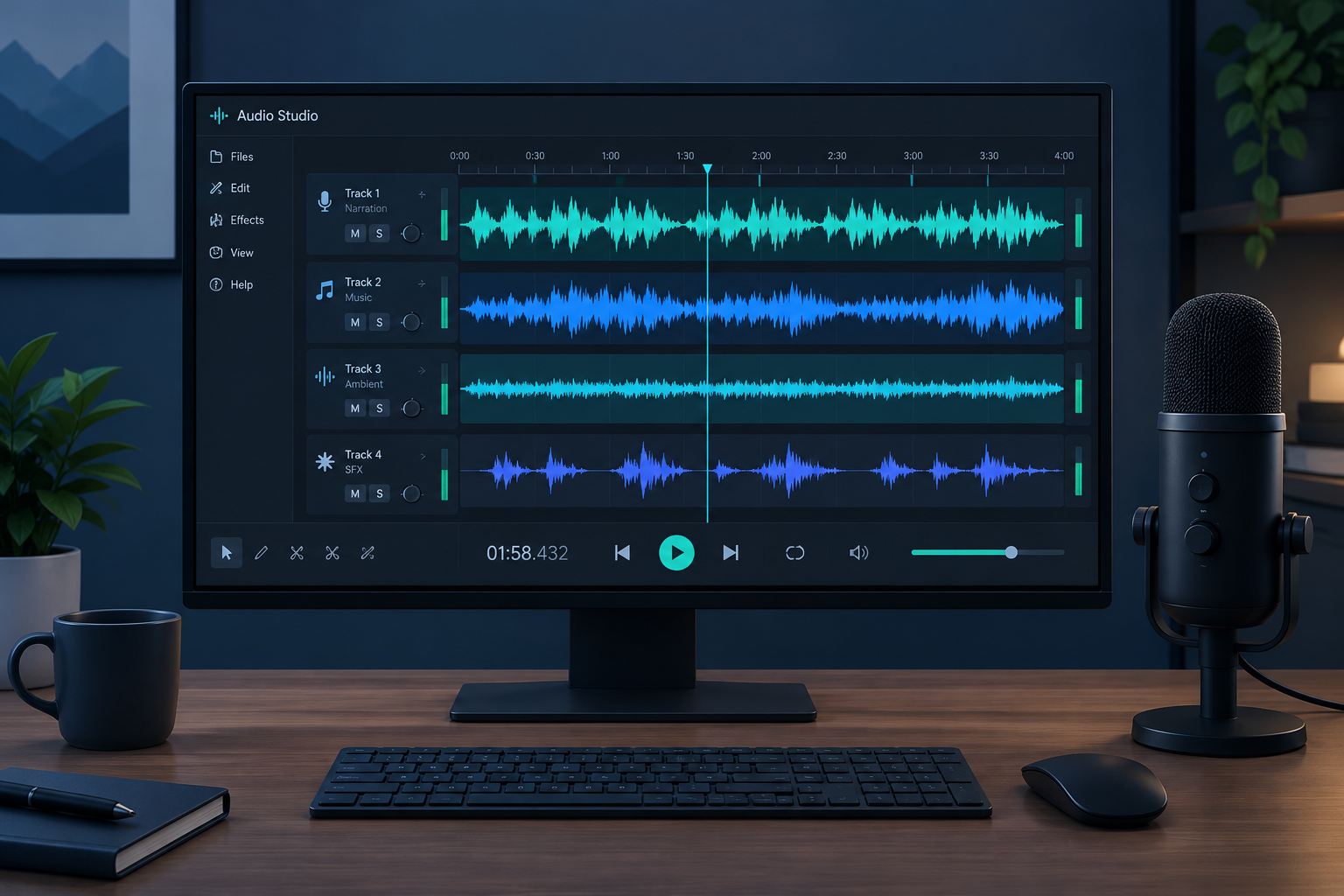
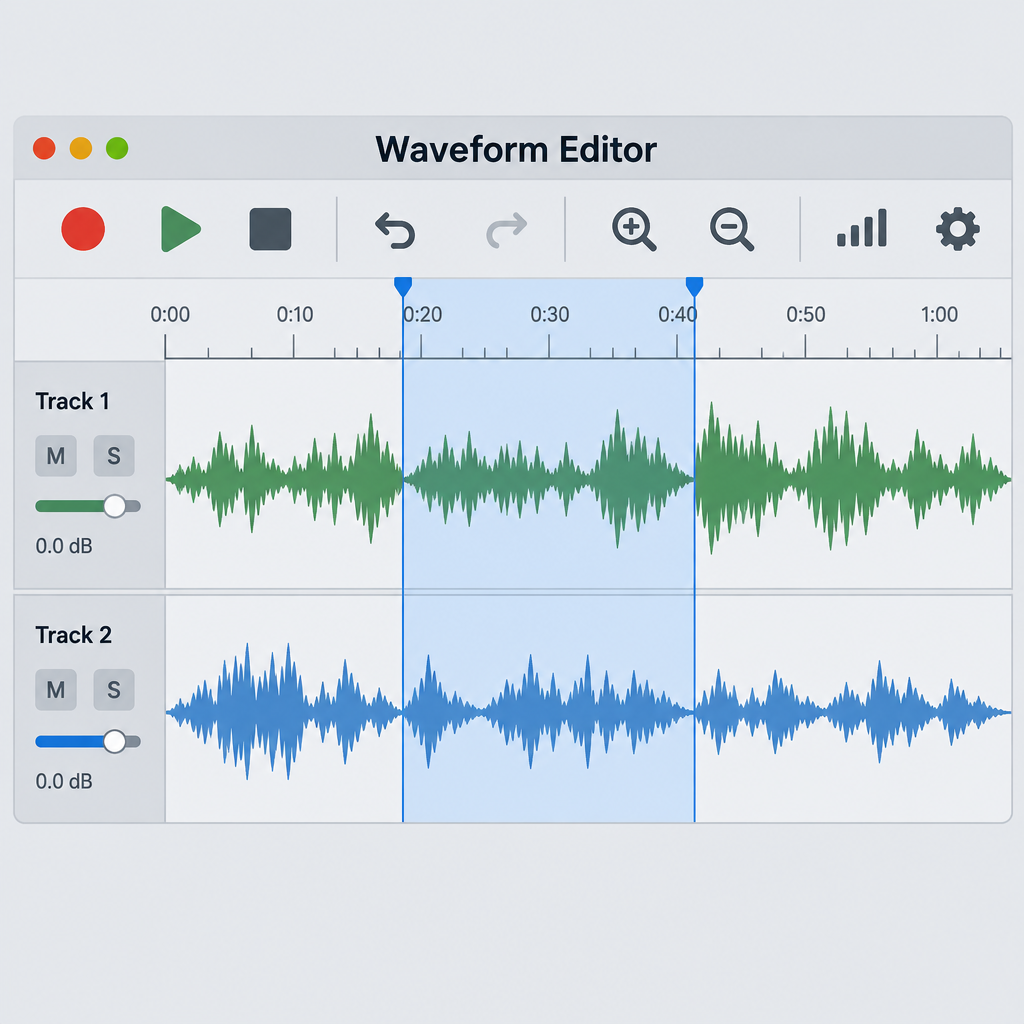
Audacity is a waveform editor. You open or record audio, see it as a waveform, select a section with the mouse, and do something to that selection: cut it, copy it, fade it, denoise it or run an effect over it. Its features are built around that select-then-process loop.
The program started in 1999 at Carnegie Mellon University, written by Dominic Mazzoni and Roger Dannenberg. The first public release followed in 2000. For more than two decades a volunteer team developed it. Then in 2021, Muse Group took over stewardship. Muse Group also runs MuseScore and Ultimate Guitar, and its arrival brought paid developers and a much faster release pace.
The software is released under the GNU General Public License, and current builds are distributed under GPL version 3. That licence is why Audacity has no “pro” upgrade. The source code is public, anyone can build it, and forks exist. The best known fork is Tenacity, which split off after a 2021 row over a proposed telemetry plan and privacy policy. Muse Group dropped the telemetry plan. Today its network features include an optional update check, the optional audio.com cloud integration and, since version 3.7.2, UUID-based instance tracking.
People search for it as the “Audacity app”, the “Audacity program” or the “Audacity audio editor”. All of those mean the same desktop application. There is no official mobile app and no official browser-based online version.
Where Audacity fits (and where it doesn’t)
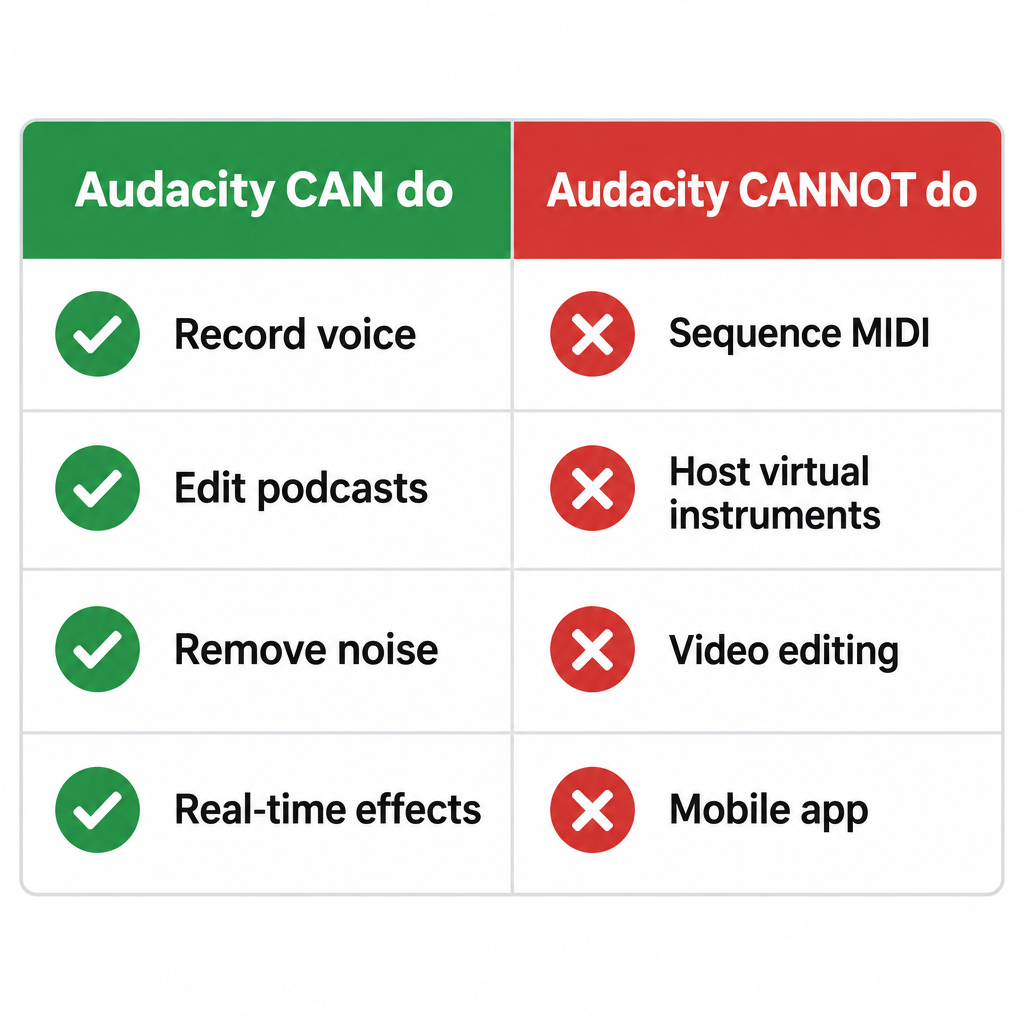
Most confusion about Audacity comes from expecting it to be something else. It is not a DAW in the sense that Ableton Live, FL Studio or the free LMMS and Ardour are. The table below shows what it covers and what it leaves out.
| Job | Can Audacity do it? | Notes |
|---|---|---|
| Record a voice or instrument | Yes | Mono or stereo, multiple channels if your interface supports it |
| Edit podcast or voiceover audio | Yes | Its strongest use case |
| Remove background noise and hum | Yes | Built-in Noise Reduction, Notch Filter, spectral tools |
| Master a single track | Partly | Compressor, Limiter, EQ, loudness normalization; no advanced metering suite |
| Multitrack mixing | Partly | Works for a handful of tracks; no buses or sends |
| Real-time effects while playing back | Yes (3.2 and later) | Per-track and master effect stacks |
| Record or sequence MIDI | No | Can import and play MIDI files as note tracks, with very limited editing |
| Host virtual instruments (VSTi) | No | Effects only |
| Video editing | No | Can import the audio from many video files via FFmpeg |
| ASIO low-latency drivers on Windows | Not in official builds | GPL and Steinberg SDK licensing conflict; you can compile it yourself |
If you want to write songs with synths and drum programming, use a DAW. Audacity is the right tool for capturing sound and editing it.
Versions: what changed in recent releases
The 3.x series changed Audacity more than anything in the decade before it. If you last used it around version 2.4, a lot has moved.
| Version | Year | Headline changes |
|---|---|---|
| 2.0 | 2012 | Major overhaul, improved effects and editing |
| 2.3.2 | 2019 | MP3 encoding (LAME) bundled, no separate download needed |
| 3.0 | 2021 | New single-file .aup3 project format (SQLite-based) |
| 3.1 | 2021 | Clip handles, non-destructive trimming of clips |
| 3.2 | 2022 | Real-time effects, VST3 support, audio.com sharing |
| 3.4 | 2023 | Music workflow: beats and measures grid, clip time-stretching, Opus export |
| 3.5 | 2024 | Cloud project saving to audio.com, automatic tempo detection |
| 3.6 | 2024 | Master effects, reworked Compressor and Limiter |
| 3.7 | 2024 | Current series, ongoing fixes and refinements |
The .aup3 change in 3.0 matters most day to day. Older Audacity saved a small .aup file plus a folder of data blocks. If you moved one without the other, the project broke. Now everything lives in one file, which is easier to back up, but that file can grow large.
A redesigned Audacity 4 is in development under Muse Group. If you need a stable tool today, use the latest 3.7 release from the official site.
How to download and install Audacity
Audacity is a free download from audacityteam.org. Do not use mirror sites that wrap installers in adware, and ignore “Audacity” listings in phone app stores, which are not official.
| Platform | Official package | Plugin formats it loads |
|---|---|---|
| Windows 10 / 11 | 64-bit installer (.exe) | VST, VST3, LADSPA, Nyquist |
| macOS (Intel and Apple Silicon) | Universal .dmg | VST, VST3, AU, LV2, LADSPA, Nyquist |
| Linux | AppImage, Flatpak on Flathub, distro packages | VST, VST3, LV2, LADSPA, Nyquist |
| ChromeOS | Via Linux (Crostini) using the Linux build | As Linux |
Plugin support depends on the platform build, so check the Plugin Manager after installing anything new. Audacity 3.x does not support CLAP plugins.
Watch out
On Windows, the download page may suggest installing through MuseHub, Muse Group’s app manager. You don’t need it. Choose the direct installer if you only want Audacity.
Some formats need one more component. MP3 import and export work out of the box. For M4A/AAC, WMA and audio pulled from video files, Audacity needs the FFmpeg library. You can point to it under Edit > Preferences > Libraries (on macOS, Audacity > Preferences > Libraries). The Audacity manual explains where to get a compatible build for your system.
Your first recording session
Most Audacity jobs follow the same pattern: set up the input, record, trim, process, export. A clean first session looks like this.
Quick steps: record and export a voiceover
- Plug in your mic and open Audacity.
- Click Audio Setup and choose Host, Recording Device and Channels.
- Click the record meter to start monitoring and set your level.
- Press R to record and Space to stop.
- Select and delete mistakes, then process.
- Use File > Export Audio and choose your format.
Set up the device and project rate
The Audio Setup button in the toolbar holds the settings beginners usually miss. On Windows, pick Windows WASAPI as the host if your interface works with it. It usually gives better results than the older MME default. Then set Recording Device, and set Channels to 1 for a single mic (mono). Mono halves the file size and avoids a voice that sits only in the left ear.
The project sample rate sits at the bottom left of the main window, or under Edit > Preferences > Audio Settings. It defaults to 44100 Hz with 32-bit float as the default sample format. For voice and music that is fine. Use 48000 Hz if the audio is going into a video edit, because that is the video standard.
Get the level right
Click the recording meter to start monitoring without recording. Aim for speaking peaks around -12 to -6 dB on the meter. That leaves headroom so a laugh or a loud word doesn’t clip. If you can barely get the meter moving with the input gain maxed out, your microphone may need more clean gain than your interface supplies. Our guide on whether you need a “mic preamp” covers that problem in detail.
If you’re recording guitar, tune up with a “guitar tuner” before you hit record. Audacity has no tuner built in, and pitch correction after the fact is far worse than ten seconds of tuning.
Record, then trim
Press R to record and Space to stop. To remove a mistake, drag across it and press Delete. To split a clip so you can move parts independently, put the cursor where you want the split and press Ctrl+I (Cmd+I on Mac). Since 3.1, you can also drag the edges of a clip to trim it without destroying the hidden audio. If you cut too much, drag the edge back out.
Producer tip
Record five seconds of silence before you start talking. That room-tone sample is exactly what Noise Reduction needs to build its profile, and it’s useful later for patching gaps between edits.
Export
File > Export Audio opens the export dialog. Choose the format, sample rate and quality. For a podcast, MP3 at 128 kbps mono is plenty. For anything you might edit again, export WAV or FLAC and keep the .aup3 project too. The same dialog can split a long recording into multiple files based on labels, which is handy for audiobook chapters or a batch of sound effects.
10 things Audacity does well
This is the core of the “what can you actually do with it” question. These are the jobs where Audacity is as good as paid software, or close enough that the price difference doesn’t matter.
1. Cleaning up noisy recordings
Noise Reduction lives at Effect > Noise Removal and Repair > Noise Reduction. Select a stretch of pure background noise, click Get Noise Profile, then select the whole track and run the effect again. The defaults are 12 dB reduction, sensitivity 6 and frequency smoothing of 3 bands. They are reasonable, but start lower: 6 to 9 dB of reduction usually removes fan hiss without the watery, metallic artifacts that heavy settings cause.
For mains hum at 50 Hz (Europe) or 60 Hz (North America), use Notch Filter under Effect > EQ and Filters. It works better than general noise reduction for that job.
2. Podcast and YouTube voice editing
For spoken content, Audacity holds up against paid editors. Label tracks (Ctrl+B adds a label) let you mark edits while you listen. Truncate Silence shortens long pauses automatically. Loudness Normalization, under Effect > Volume and Compression, sets your episode to a target such as -16 LUFS. That figure is a common podcast standard for stereo files. Audio for YouTube is often mastered around -14 LUFS, since the platform turns louder uploads down anyway.
3. Spectral editing
Switch a track to Spectrogram view from the track name dropdown. You then see frequency over time instead of a waveform. You can draw a selection around a single cough, a phone notification or a chair squeak and remove just that band, using the spectral tools in the Effect menu. Spectral editing is the headline feature of paid repair suites, and Audacity’s version, though simpler, handles most everyday problems.
4. Digitizing vinyl and cassettes
Connect a turntable through a phono stage, or a cassette deck through line in, and record a full side. Use Click Removal for vinyl pops, add labels at the gaps between songs, and export each track as its own file. Audacity has handled this job well for years.
5. Real-time effect chains
Since 3.2, each track has an Effects button that opens a stack of real-time effects. These are non-destructive: tweak the EQ while the track plays, bypass it, reorder it, and nothing is written to the audio until you export. Version 3.6 added master effects, so you can put a limiter across the whole mix. Third-party VST3 plugins work here too, which opens up the large library of free plugins.
6. Batch processing with Macros
Tools > Macros lets you chain commands, such as Normalize, then Loudness Normalization, then Export as MP3, and apply them to a whole folder of files. If you produce sample packs, voice prompts or a backlog of lecture recordings, this alone can save you hours.
7. Recording what your computer plays
On Windows, choose Windows WASAPI as the host and pick the device marked “(loopback)” to record system audio directly. macOS has no loopback built in, so you need a virtual audio device. The free, open-source BlackHole driver is the usual choice. Only record audio you have the right to capture.
8. Simple vocal production tricks
You can make a quick double: duplicate a vocal track with Ctrl+D, nudge it a few milliseconds later, and pitch it a few cents off with Effect > Pitch and Tempo > Change Pitch. It works, though a dedicated plugin does it better. Our guide to “automatic double tracking” compares the free doubler plugins that do this in one step.
9. Changing speed, pitch and tempo
Change Tempo keeps pitch while slowing a guitar solo you’re learning. Change Pitch transposes a backing track into your vocal range. Since 3.4 you can also time-stretch a clip by holding Shift and dragging its edge, and the new beats-and-measures view snaps clips to a grid. That makes Audacity workable for simple loop arranging, although it is still no DAW.
10. Analysis and checking
The Analyze menu is underrated. Plot Spectrum shows the frequency balance of a selection, so you can spot a muddy buildup around 200 to 300 Hz. Find Clipping marks samples that hit the ceiling. Contrast measures the difference between foreground speech and background, a check some accessibility guidelines ask for.
File formats Audacity opens and exports
| Format | Import | Export | Needs FFmpeg? |
|---|---|---|---|
| WAV, AIFF | Yes | Yes | No |
| FLAC | Yes | Yes | No |
| MP3 | Yes | Yes | No |
| Ogg Vorbis | Yes | Yes | No |
| Opus | Yes | Yes (3.4 and later) | No |
| WavPack | Yes | Yes | No |
| M4A / AAC | Yes | Yes | Yes |
| WMA | Yes | Yes | Yes |
| Audio from video (MP4, MKV, MOV) | Yes | N/A | Yes |
| MIDI | Yes (as note tracks) | Yes | No |
Audacity cannot export video. If you import audio from an MP4, clean it up, and want it back in the video, export a WAV and replace the audio in your video editor.
Keyboard shortcuts worth learning first
Editing gets much faster once you stop reaching for menus. These defaults cover most daily work (use Cmd in place of Ctrl on macOS):
- Space: play / stop
- R: record
- Ctrl+I: split clip at cursor
- Ctrl+D: duplicate selection
- Ctrl+B: add label
- Ctrl+L: silence the selection
- Ctrl+1 / Ctrl+3: zoom in / out
- Ctrl+E: zoom to selection
- Ctrl+Z: undo (Audacity keeps a full undo history, viewable under View > History)
You can remap any of these under Edit > Preferences > Shortcuts.
Limits, upsells and honest weak spots
Audacity is free with no strings attached to the core program. There is no watermark, no export cap and no account requirement. It does have a few soft upsells and real limitations you should know about.
audio.com prompts. Since 3.5, Audacity offers to save projects to audio.com, Muse Group’s cloud service, which has a free tier. You can ignore it and save locally. Saving to your own drive is unaffected.
Latency and monitoring. Official Windows builds lack ASIO, so you can’t monitor through effects with low latency the way you would in a DAW. Use your interface’s direct (hardware) monitoring while recording. Audacity’s Software Playthrough option, under Transport > Transport Options, adds an audible delay. Audacity also applies a default latency compensation of -130 ms, set in Audio Settings. If overdubs land late against a backing track, run a loopback test and adjust that value.
Watch out
A crashed or force-quit session can leave a large .aup3 file and leftover temporary data. Save often with Ctrl+S, and keep exported WAV backups of anything you can’t re-record.
No instruments, weak MIDI. You can’t load a synth plugin or program drums. Note tracks only play back imported MIDI, with very limited editing.
Mixing scale. Ten tracks is comfortable. Fifty tracks with buses, sends and automation is not what Audacity is built for. Ardour or Reaper’s discounted licence will serve you better at that point.
Interface age. The 3.x releases modernized the look, but the menus still show decades of accumulated features. Some effects, such as the older Nyquist-based ones, have dated dialogs. The planned Audacity 4 redesign aims at exactly this problem.
Who Audacity is for
Audacity suits podcasters, voiceover artists, YouTubers who need clean narration, teachers recording lessons, archivists digitizing tapes, and musicians who need to edit a recording rather than build a song from scratch. It also makes a good second tool next to a DAW. Plenty of producers bounce a vocal out of their main session, fix it in Audacity’s spectrogram, and drop it back in.
It is the wrong pick if your main need is MIDI composition, beatmaking with virtual instruments, or large mixing sessions. For those jobs, install a free DAW and keep Audacity for repair and quick edits.
FAQ
Is Audacity really free?
Yes. Audacity is open-source software under the GNU GPL, with no paid version, no watermark and no time limit. The only optional paid services connected to it are audio.com’s paid plans, which add more project storage plus features such as AI tools, transcription and collaboration, and you never have to use them.
Is Audacity safe to download?
The official installer from audacityteam.org is safe. The risk comes from third-party download sites that bundle adware and from fake “Audacity” apps on phone app stores. On Windows, you can skip the optional MuseHub installer and take the direct download.
Is there an Audacity app for Android or iPhone?
No. Audacity is a desktop program for Windows, macOS and Linux. Any mobile app using the name is unofficial. On a Chromebook you can run the Linux version if your device supports Linux apps.
Can I use Audacity online without installing it?
There is no official online version of the editor. audio.com, run by the same company, lets you share and store Audacity projects in the cloud. The editing still happens in the desktop app.
Can Audacity use VST plugins?
Yes, as effects. It loads VST and, since 3.2, VST3 plugins on all platforms. It also loads AU on macOS and LV2 on Linux and macOS, plus LADSPA and its own Nyquist plugins. Instrument plugins (VSTi) and CLAP plugins are not supported. Enable new plugins under Effect > Plugin Manager.
Is Audacity good enough for professional work?
For spoken-word editing, restoration and simple mastering, yes. Plenty of published podcasts and audiobooks go through it. For music production with instruments, MIDI and complex mixes, a DAW is the right tool, and Audacity works best as a companion editor alongside it.