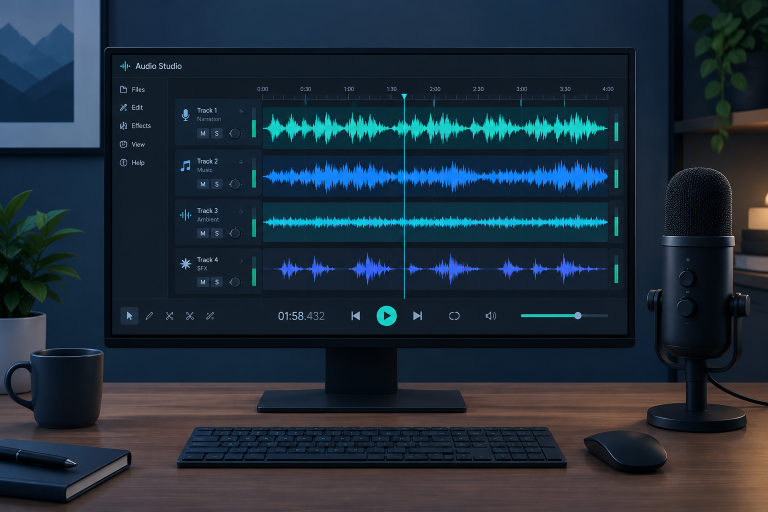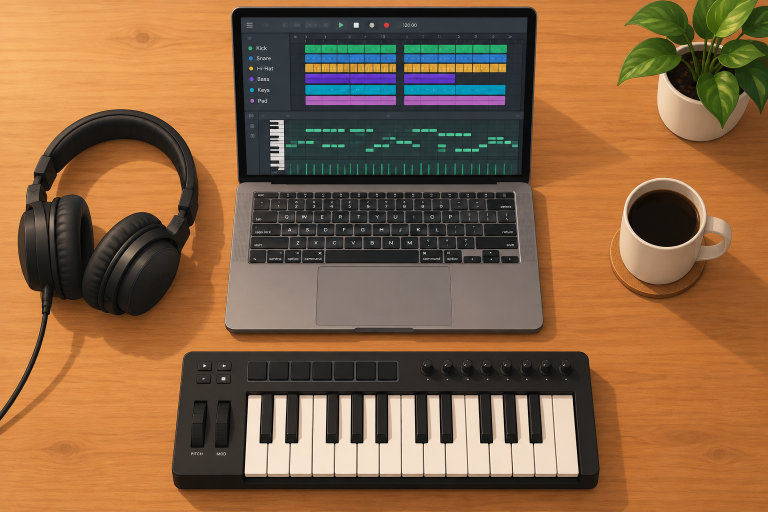

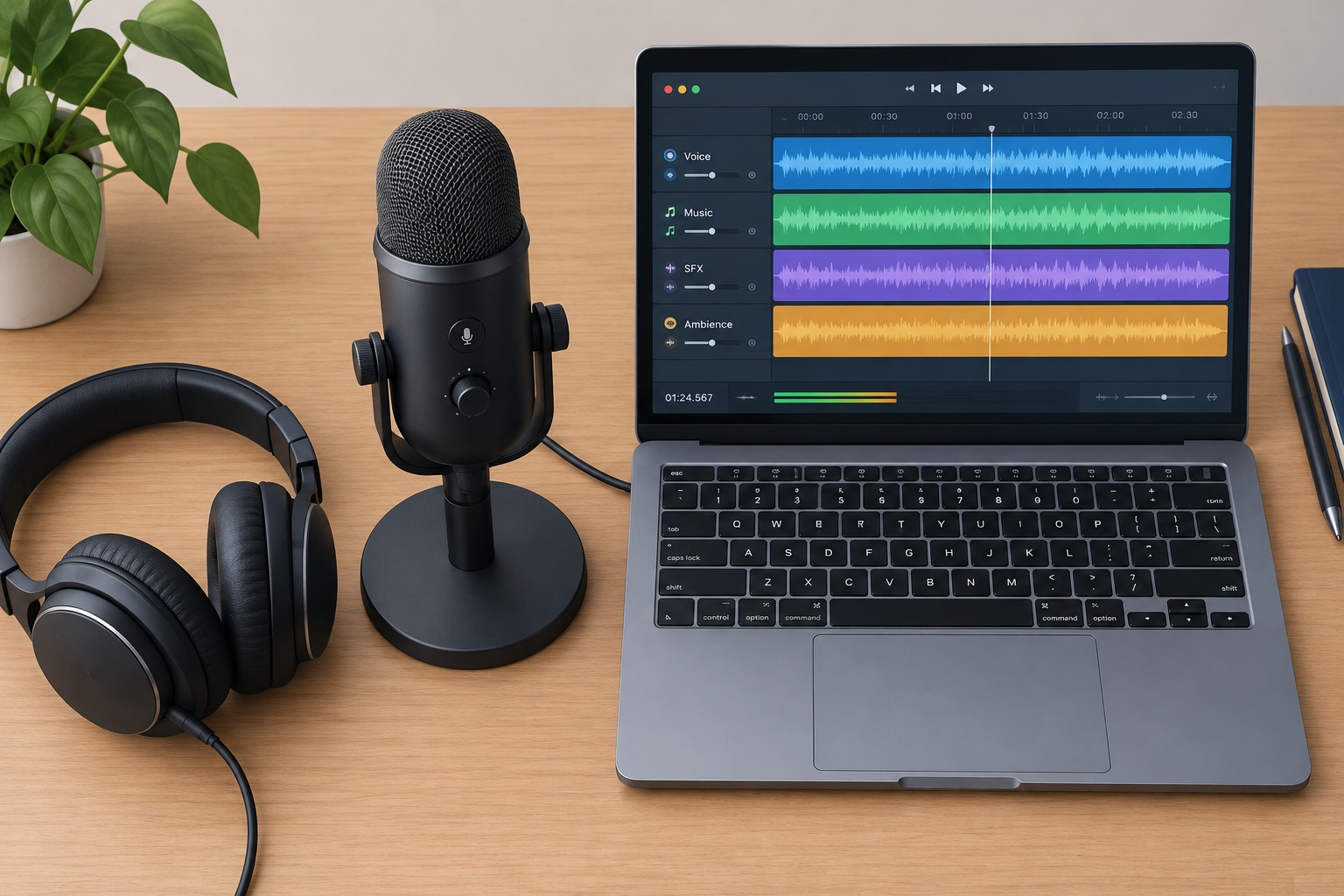
The free way to record audio on a computer is simple. Plug in a microphone, install Audacity, pick your mic as the recording device, set your level so peaks sit around -12 dB, then press Record and export to WAV or MP3. If you only need a quick voice memo, the recorder already built into Windows or macOS works with no download at all.
Quick steps: record audio in Audacity
- Pick a free recorder that fits the job.
- Connect your mic and allow microphone access.
- Choose your recording device in Audio Setup.
- Set sample rate and format.
- Set input gain using the meter.
- Press R to record, Space to stop.
- Trim, clean up noise, normalize loudness.
- Save the project, then export the file.
Step 1: Choose the right free recorder
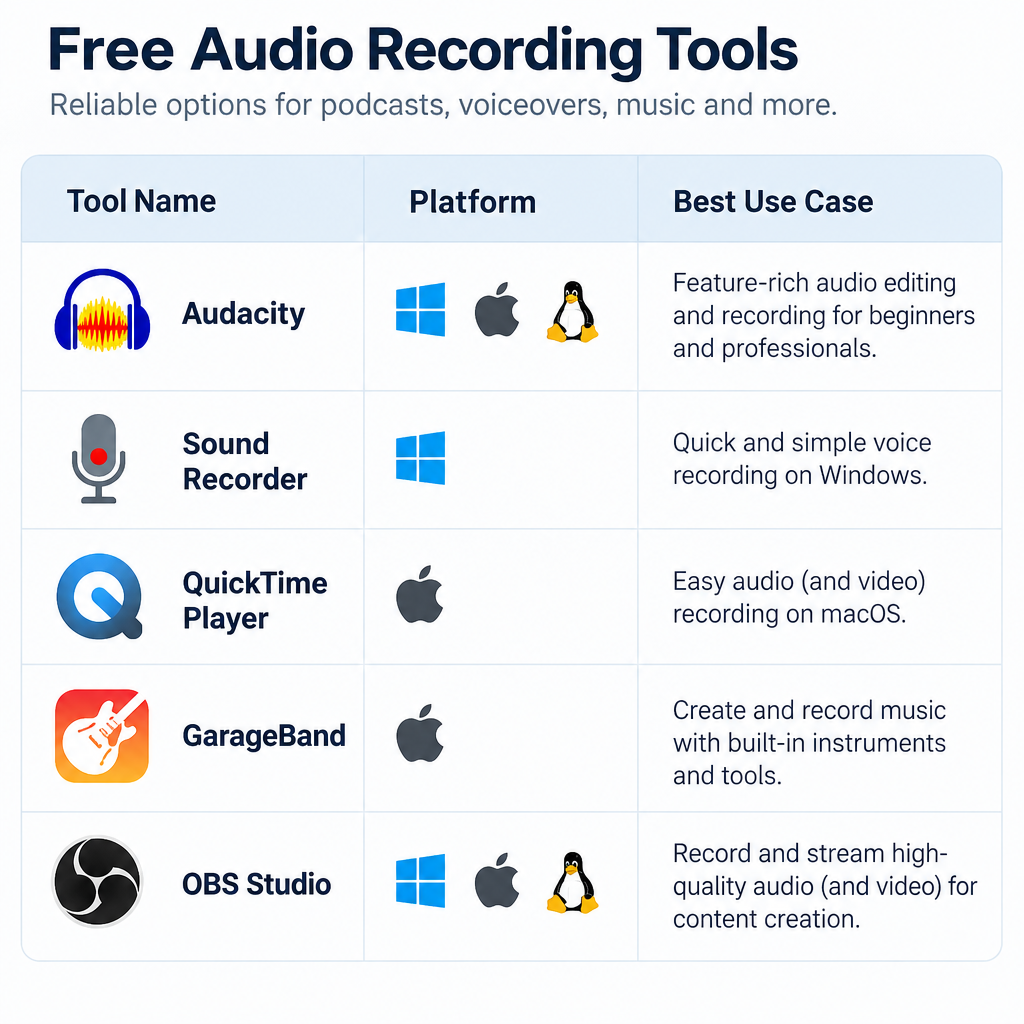
Every computer can record sound, but the tools differ a lot. Use a built-in app for quick voice notes. Use Audacity once you want to edit. For songs with many layered tracks, move to a full digital audio workstation.
| Tool | Price | Platforms | Formats | Best for |
|---|---|---|---|---|
| Audacity | Free, open source | Windows, macOS, Linux | WAV, MP3, FLAC, OGG and more | Voice, podcasts, editing |
| Sound Recorder | Free, built in | Windows 11 | M4A, MP3, WAV, FLAC, WMA | Quick voice memos |
| QuickTime Player / Voice Memos | Free, built in | macOS | M4A | Quick notes on a Mac |
| GarageBand | Free | macOS | AIFF, WAV, MP3, AAC | Music with instruments |
| OBS Studio | Free, open source | Windows, macOS, Linux | MKV, MP4 (audio and video) | Capturing desktop audio with video |
| BandLab | Free | Browser, Windows, macOS, mobile | WAV, MP3 | Recording music online |
This guide uses Audacity because it runs on all three desktop platforms, costs nothing, and has no watermark, time limit or paid upgrade wall. To see what else it can do beyond recording, read our piece on the Audacity audio editor.
Step 2: Connect your microphone and allow access
You have two common options.
- USB microphone. Plug it straight into the computer. The mic has its own converter and usually a gain knob.
- XLR microphone. This needs an audio interface between the mic and the computer. The interface provides gain, and phantom power for condenser mics.
If your recordings sound thin or noisy even at full gain, read our guide on whether you need a mic preamp for home recording. Laptop mics work for notes, but they pick up fan noise and room echo.
Your operating system has to let apps use the mic, or Audacity will record silence.
- Windows 11: Settings > Privacy & security > Microphone. Turn on Microphone access and Let desktop apps access your microphone.
- macOS: System Settings > Privacy & Security > Microphone. Turn on the switch next to Audacity. macOS also asks the first time you press Record.
- Linux: No permission step on most distros. Check that your input isn’t muted in your sound settings.
Watch out
A flat line in Audacity while you speak almost always means a muted mic, the wrong input device, or blocked microphone permission. Check those three before reinstalling anything.
Step 3: Install Audacity and pick your input
Download Audacity from the official site, audacityteam.org. Avoid mirror sites that bundle extra installers. Then open it and click the Audio Setup button on the toolbar.
- Host. On Windows, pick Windows WASAPI for the most reliable results. On macOS it’s Core Audio. On Linux, ALSA is the usual choice.
- Recording Device. Pick your USB mic or audio interface, not “Default” or the laptop’s built-in mic.
- Recording Channels. Choose 1 (Mono) for a single microphone. A mono mic recorded as stereo just gives you two identical channels and a bigger file.
- Playback Device. Pick your headphones.
Plug the mic in before you open Audacity. Audacity scans devices at launch. If you connect a mic afterwards, use Transport > Rescan Audio Devices.
Step 4: Set sample rate and recording quality
Open Audio Setup > Audio Settings.
- Project Sample Rate: 48000 Hz if the audio goes with video. 44100 Hz for music meant for streaming or CD.
- Default Sample Format: leave it at 32-bit float. This gives you a lot of headroom during editing, so internal processing can’t clip.
- Buffer length: the default 100 ms is fine for plain recording. Lower it only if you need to monitor yourself through the software and can hear a delay.
Higher sample rates like 96 kHz make files twice as large and do nothing useful for a spoken voice. For most home recording, 48 kHz with 32-bit float is the best choice.
Step 5: Set your input level before you record
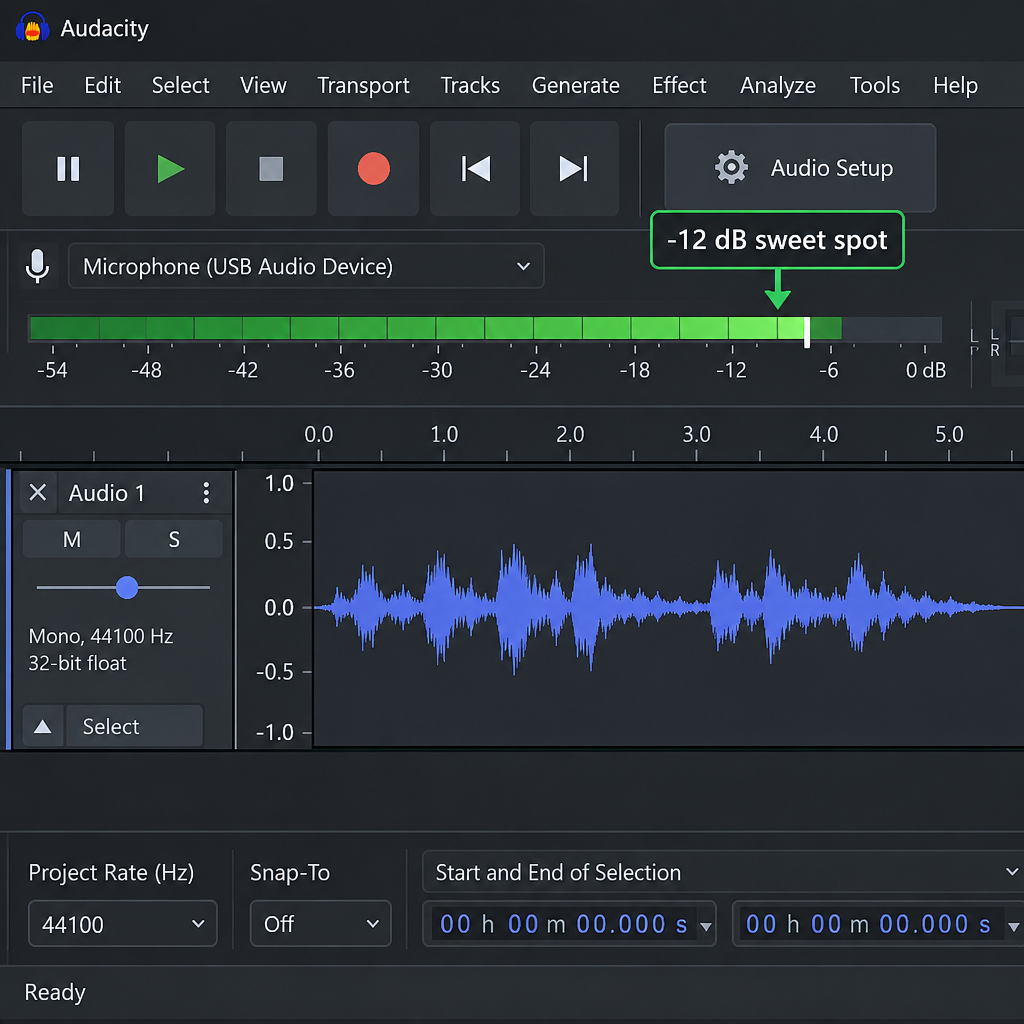
Bad gain ruins more recordings than cheap microphones do. Click the recording meter on the toolbar (it says “Click to Start Monitoring”). Then speak or play at the loudest level you plan to use.
Adjust the gain knob on your mic or interface until the loudest peaks land between -12 dB and -6 dB. Leave the rest as headroom. If the meter touches 0 dB, the signal clips, and clipped audio can’t be repaired cleanly.
Audacity also has a recording volume slider. With many USB devices it only scales a signal that’s already been digitized. Set your level at the hardware whenever the hardware lets you.
Producer tip
Put the mic about a fist’s width (10-15 cm) from your mouth and slightly off to one side. You get a fuller voice and far fewer popped “p” and “b” sounds. A soft room with curtains and a sofa beats any noise-removal plugin.
Step 6: Hit Record
Press the red Record button or the R key. A new track appears and the waveform draws as you go.
- Space stops recording.
- P pauses and resumes in the same take.
- Shift+R records onto a new track. Use this to layer a second part, like a harmony over a guitar line.
Before you say a word, record about 10 seconds of silence. That room tone becomes the noise sample for cleanup in the next step.
For musicians layering parts, Audacity plays existing tracks while you record a new one. The setting is under Edit > Preferences > Recording, as “Hear other tracks while recording (overdub)”, and it’s on by default. Wear headphones so the playback doesn’t bleed into the mic. Tune up first. Our guide to free online guitar tuners covers that in a couple of minutes. If you want the thick sound of a doubled vocal without singing every line twice, see our piece on automatic double tracking.
Step 7: Edit and clean up the recording
Keep edits light. A few moves fix most home recordings.
Trim the mistakes
Drag across a section with the mouse to select it, then press Delete. To cut dead air at the start, select it and delete. Ctrl+Z (Cmd+Z on Mac) undoes anything.
Reduce background noise
- Select your 10 seconds of room tone.
- Go to Effect > Noise Removal and Repair > Noise Reduction and click Get Noise Profile.
- Press Ctrl+A to select the whole track.
- Open Noise Reduction again and click OK. The defaults are 12 dB reduction, sensitivity 6, frequency smoothing 3 bands.
If voices start sounding watery or robotic, undo and lower the reduction to 6-8 dB. A little leftover hiss sounds more natural than heavy artifacts.
Even out the loudness
Go to Effect > Volume and Compression > Loudness Normalization. Set it to perceived loudness and pick a target.
- -16 LUFS for podcasts and spoken word. This is the common target for podcast apps.
- -14 LUFS for music headed to streaming platforms.
For music projects that need real mastering, free mastering suites are worth a look. Our article on IK Multimedia T-RackS and its free version explains what you get without paying.
Step 8: Save the project and export the file
These are two separate jobs.
Save the project: File > Save Project > Save Project. Audacity writes an .aup3 file containing every track and edit. Only Audacity opens it, but you can come back and change anything later.
Export the audio: File > Export Audio (Ctrl+Shift+E, or Cmd+Shift+E on Mac). Then choose a format:
| Format | Use it for | Notes |
|---|---|---|
| WAV | Archiving, sending to a mix engineer, video editors | Lossless, large files |
| FLAC | Lossless with smaller files | About half the size of WAV |
| MP3 | Sharing, podcasts, email, uploads | 192 kbps constant bit rate suits voice and most music |
MP3 export is built into current Audacity versions. You don’t need the separate LAME download that older guides mention. Export a WAV master first, then make an MP3 from it whenever you need a smaller file.
Watch out
Audacity can edit an exported MP3 later, but every MP3 re-save loses quality. Keep the .aup3 project or a WAV master for any recording you care about.
How to record desktop audio (the sound your computer plays)
You might want to record a video call, a livestream, or a demo playing in your browser. Only record material you have the right to capture.
- Windows: In Audacity’s Audio Setup, set Host to Windows WASAPI. Then pick the recording device that ends in “(loopback)” next to your speakers or headphones. Audacity now records whatever the computer plays.
- macOS: macOS won’t route system audio to apps on its own. Install BlackHole, a free, open-source (GPL-3.0) virtual audio driver. Set it as your output, then choose it as Audacity’s recording device. Use a Multi-Output Device in Audio MIDI Setup so you can still hear the audio.
- Any platform with video: OBS Studio captures desktop audio and mic together as separate sources. That makes it the better choice when you also need the screen.
Recording online, on a Chromebook, or without installing anything
If you can’t install software, browser recorders work. BandLab is free and runs in Chrome. It records multitrack music and exports WAV or MP3. Soundation offers a free tier with project and feature limits, and it pushes paid plans for its larger sound library. Simple online voice recorders that save straight to MP3 are fine for one-off clips.
The trade-offs are real. Browser recording adds latency, depends on your connection for saving, and some services keep your files on their servers. Read the terms before you upload anything private. On a Chromebook, a browser tool like BandLab is the most practical way to record music online.
What free tools can’t do (and when to move on)
Audacity is excellent for recording one or two sources and editing them. It has limits:
- No MIDI recording or virtual instruments. If you want to program drums or synths, use a DAW. Our guide on how to make beats for beginners covers that workflow.
- No ASIO in the official Windows build, for licensing reasons. WASAPI works well for most people, but monitoring through the software will lag a little.
- Basic multitrack mixing. Ten or more tracks with buses and automation get clumsy.
When you reach those limits, a free DAW is the next step. Our explainer on what a DAW is helps you pick one.
FAQ
What is the easiest free way to record audio on a computer?
Use the built-in recorder. On Windows 11, open Sound Recorder and click Record. On a Mac, open QuickTime Player and choose File > New Audio Recording. Move to Audacity once you need to edit or clean up the sound.
Can I record straight to MP3?
Windows 11’s Sound Recorder can save to MP3 in its settings. In Audacity, you always record into the project first, then use File > Export Audio and choose MP3. Recording to a lossless format and exporting MP3 at the end gives better quality.
Why is my recording so quiet?
Your input gain is too low. Turn up the gain knob on your mic or interface until peaks reach -12 to -6 dB on Audacity’s meter. Don’t just boost the volume after recording, because that raises the noise as well.
Is Audacity really free, with no watermark?
Yes. Audacity is open source under the GPL. It has no watermark, time limit or locked features. The installer may offer optional extras like the MuseHub app on Windows. You can skip them.
What sample rate should I record at?
Use 48 kHz for anything going with video and 44.1 kHz for music. Keep Audacity’s default 32-bit float format. Higher rates mostly make bigger files.